Configure Settings for Individual POS Systems
Stay is enhanced to allow users to configure settings individually for each POS system, such as, Comtrol, IG POS. Previously, users configured a single setting that was referred to by all the POS systems for posting charges to the accounts in Stay.
Feature Setting
The following new feature setting must be enabled to allow users to define the interface type and configure settings individually for POS systems:
-
Name: Add POS
-
Value: Must be enabled
-
Comments: License is not required
Configuring New Settings
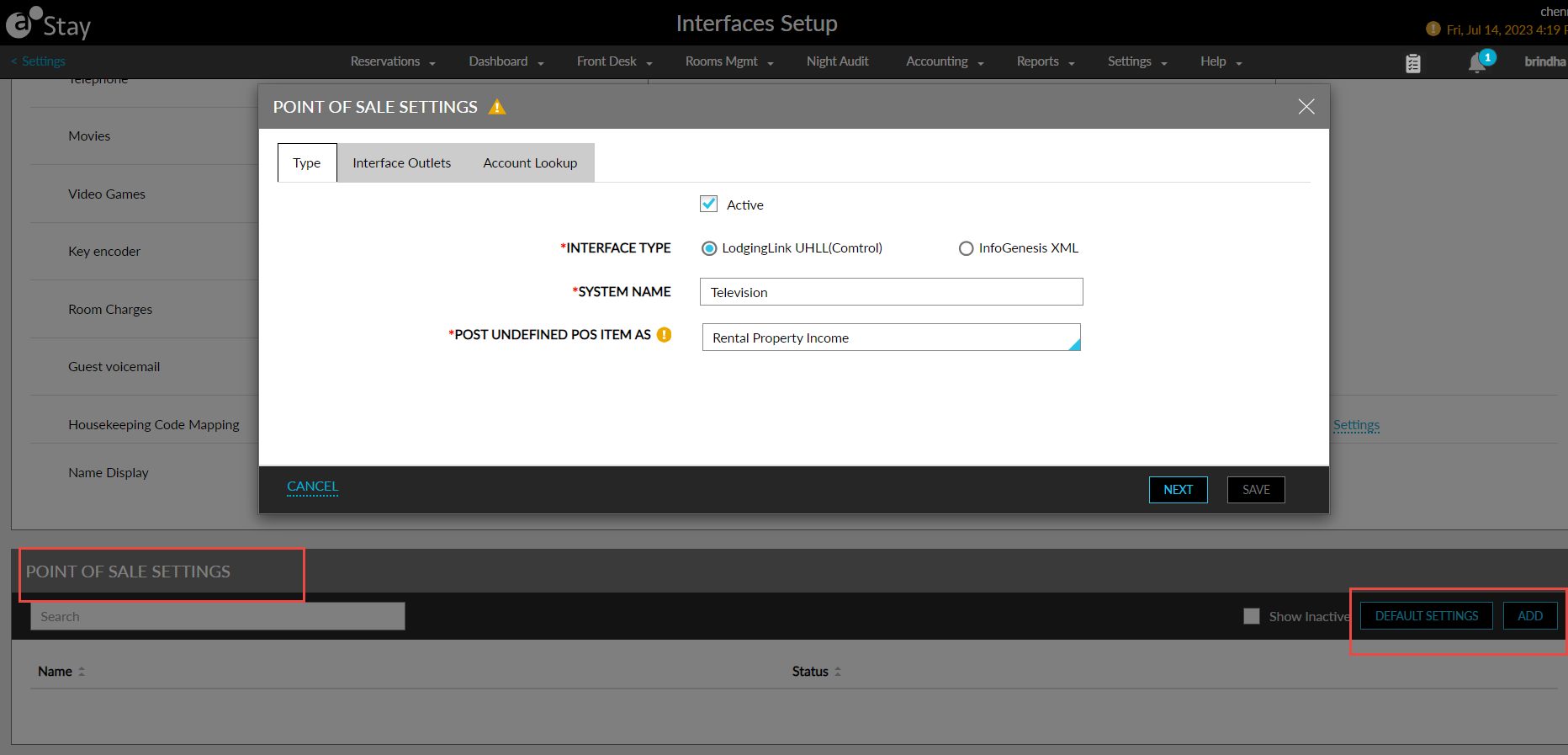
When the new feature setting is enabled, a new section, Point of Sale Settings, is displayed on the Settings tab of the Interfaces Setup screen (All Settings ➜ Administration ➜ Appliance Management ➜ Settings). The existing settings configured by the users are saved in this section under the name, Point of Sale. Users can configure additional settings by clicking Add.
The following fields must be configured in the Point of Sale Settings screen for Comtrol POS system:
|
Field |
Description |
|---|---|
|
Type |
|
|
Active Checkbox |
|
|
Interface Type |
Select the interface type as Lodging Link UHLL (Comtrol). |
|
System Name |
Allows users to enter a unique name for the POS system. A maximum of 50 characters including alphanumeric and special characters can be entered. |
|
Post Undefined POS Item As |
This is a mandatory field that allows users to select the transaction item using which the undefined charges from the POS system must be posted to the account in Stay. |
|
Interface Outlets |
All the outlets configured at the property are displayed with the associated meal periods. Users can configure additional meal periods for an outlet. The Default PMS Outlet setup is not displayed when the Add POS feature setting is enabled. |
|
Comtrol |
|
|
Account Look Up |
|
|
Arriving Reservations |
Users must enable this checkbox if arriving reservations must be retrieved in look up. This checkbox is not selected by default. Users can also define the following additional conditions for the arriving reservations to be fetched.
|
|
In-House Reservations |
When selected, the in-house reservations are retrieved in look up. This checkbox is unchecked by default. |
|
Departed Reservation (Until Date Roll) |
When selected, the departed reservations are retrieved in look up. Users can also define the following additional condition for the departed reservations: Only Allow Look-Up by Reservation Number or Guest Name: When selected, the departed reservations are retrieved by reservation confirmation number or guest name. If this option is not selected, the reservations are retrieved by room number. |
|
Non-Room Charges |
|
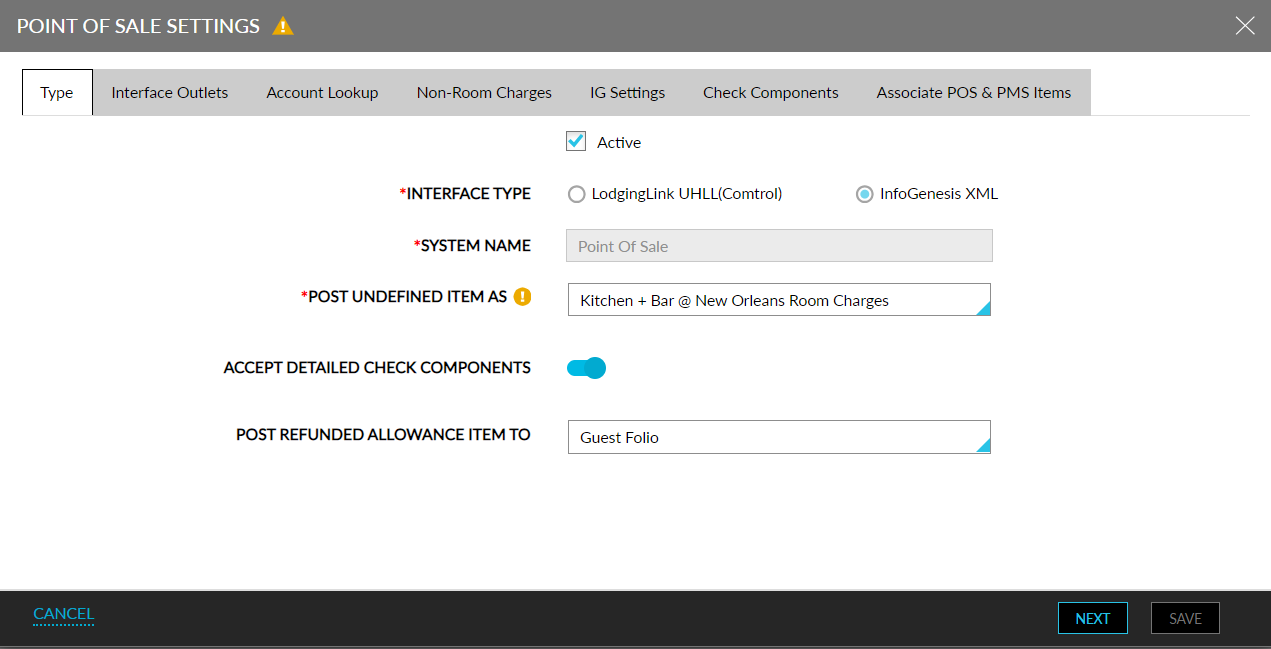
The following fields must be configured in the Point of Sale Settings screen for IG POS system:
|
Field |
Description |
|---|---|
|
Type |
|
|
Active Checkbox |
|
|
Interface Type |
Select the interface type as InfoGenesis XML. |
|
System Name |
Allows users to enter a unique name for the POS system. A maximum of 50 characters including alphanumeric and special characters can be entered. |
|
Post Undefined POS Item As |
This is a mandatory field that allows users to select the transaction item using which the undefined charges from the POS system must be posted to the account in Stay. |
|
Accept Detailed Check Components |
|
|
Post Refunded Allowance Item To |
|
|
Interface Outlets |
All the outlets configured at the property are displayed with the associated meal periods. Users can configure additional meal periods for an outlet. The Default PMS Outlet setup is not displayed when the Add POS feature setting is enabled. |
|
InfoGenesis XML |
|
|
Account Look Up |
|
|
Arriving Reservations |
Users must enable this checkbox if arriving reservations must be retrieved in look up. This checkbox is not selected by default. Users can also define the following additional conditions for the arriving reservations to be fetched.
For existing POS settings, if In-House Reservations is not selected, this option is selected by default and the drop-down options are not selected. |
|
In-House Reservations |
When selected, the in-house reservations are retrieved in look up. This checkbox is unchecked by default. For existing POS settings, this option is selected irrespective of the In-House Reservations being selected or not. |
|
Departed Reservation (Until Date Roll) |
When selected, the departed reservations are retrieved in look up. Users can also define the following additional condition for the departed reservations:
For existing POS settings, if In-House Reservations is not selected, this option is selected by default and the drop-down options are not selected. |
|
Non-Room Charges |
|
|
IG Settings |
Users can configure settings as per the existing functionality. |
|
Check Components |
Users can configure settings as per the existing functionality. |
|
Associate POS & PMS Items |
|
During Account Lookup, if the Profit Center ID does not match any of the configured POS settings, the details of the account that matches the account ID/room number provided for Lookup are retrieved and displayed.
When posting charges, if the Profit Center ID does not match any of the configured POS settings, the charges are posted to the account ID/room number provided for posting charges.
Default POS Settings
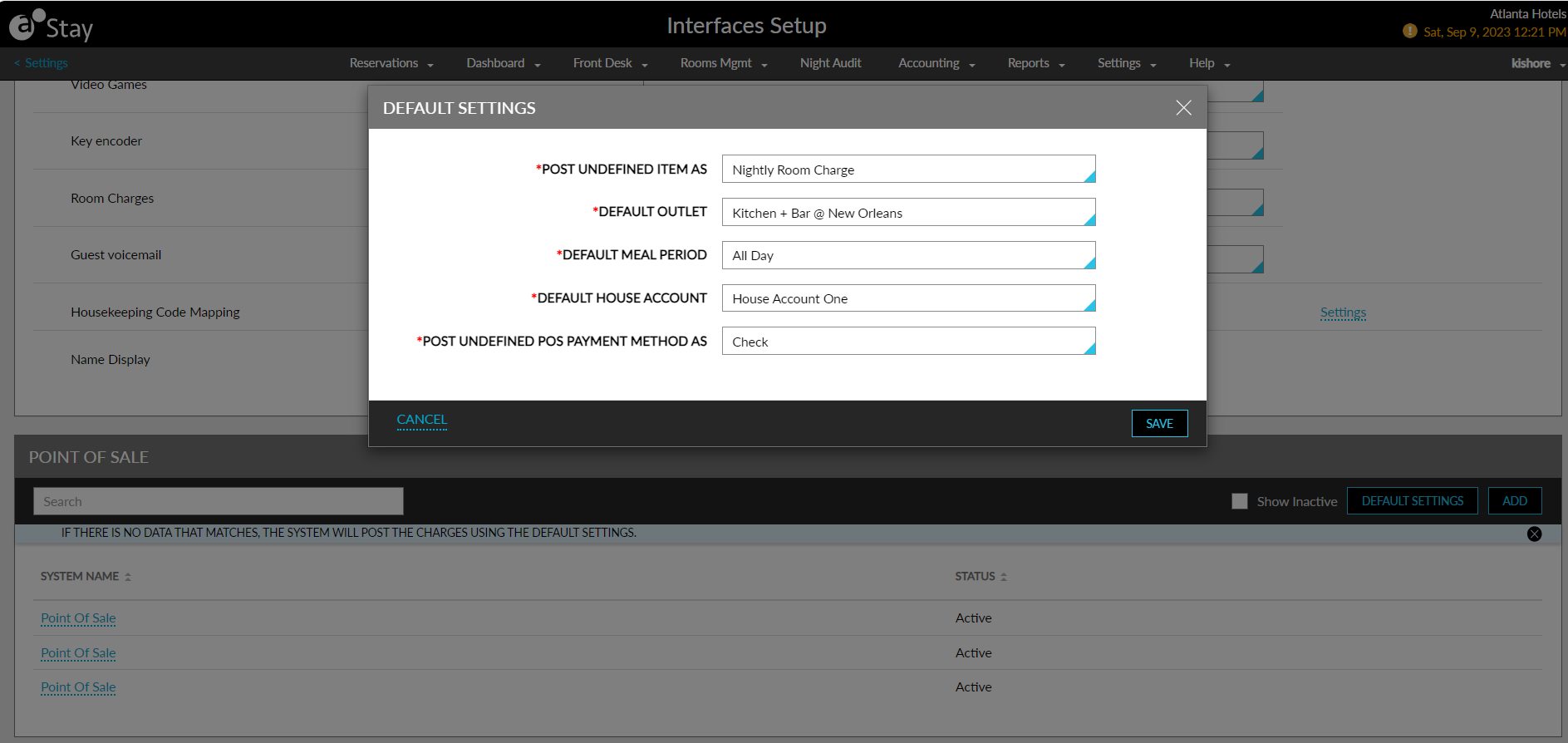
Users can configure default POS settings by clicking the Default Settings button on the Point of Sale Settings section. This button is displayed only when the Add POS feature setting is enabled. When clicked, the Default Settings pop-up screen appears that displays the following fields:
|
Field |
Description |
|---|---|
|
Post Undefined Item As |
This is a mandatory field that allows users to select the transaction item using which the undefined charges from the POS system must be posted to the account in Stay. |
|
Default Outlet |
|
|
Default Meal Period |
|
|
Default House Account |
|
|
Post Undefined POS Payment Method As |
|
The new interface settings configured are displayed in the Interfaces section of the reservation, group, house account, and payment methods. Users can choose the Allow Charges or Do Not Allow Charges options for the required interface types.
For the default hardcoded payments, the Allow Charges option is selected for the existing POS setting. For groups and house accounts, the POS setting for cash is applied. For reservations, the POS setting of the default payment method is applied.
Logs
A record is created in the Audit Log screen under the Entity Type, Point of Sale, that captures the date, time, and username when the following operations are performed:
-
Adding a new POS
-
Updating any value in POS setting
-
Adding/ updating default setting
Records are created under the Entity Type, Point of Sale Settings, that captures the date, time, and username when users add/update the default settings.
Records are also created in the Reservation History and Group History sections when users add/modify the POS settings.
Property Setup Tool
Users can import the POS settings to the property via the Stay Property Setup Tool by entering the POS system name in the SystemName column in the Check Components and PosPms Items tab. The POS settings are imported to the property based on the following conditions:
-
If the system name matches with any of the POS settings, the Check Components and PosPms Items configured in the tool are added to the POS settings in Stay.
-
If the system name does not match any of the POS settings, the Check Components and PosPms Items configured in the tool are not added to the POS settings in Stay.
-
If the system name is left blank for a record, that record is ignored and the next record is considered.
To support this enhancement the following changes have been made:
-
A new section, Point of Sale Settings, has been added to the Settings tab of the Interfaces Setup screen (All Settings ➜Administration ➜Appliance Management ➜Settings) that allows users to configure settings individually for each POS system when the Add POS feature setting is enabled.
-
A new Entity Type, Point of Sale, has been added to the Audit Log screen that allows users to view records created when users add/modify the POS settings.
-
A new column, SystemName, has been added to the Stay Property Setup Tool that allows users to import the POS settings to the property.